
Mastering Put-Away and Pick Operations Using Multiple Units of Measure in Business Central

Managing inventory efficiently in a modern warehouse often means working with multiple units of measure — buying in cases, storing in pallets, and picking in individual pieces or boxes. If your ERP can’t handle those conversions cleanly, it quickly leads to errors, inefficiencies, and issues with inventory accuracy.
Microsoft Dynamics 365 Business Central includes powerful, built-in functionality to manage picking and put-away across different units of measure, while keeping inventory quantities accurate at all times. When configured correctly, Business Central automatically handles unit conversions as items move through purchasing, receiving, storage, picking, and shipping.
In this practical, step-by-step guide, we’ll walk through how to set up and use multiple units of measure in Business Central warehouse operations, using real examples from the CRONUS demonstration database. You’ll see how Business Central supports:
- Receiving items in one unit of measure and putting them away in another
- Picking and shipping items in different units from where they were stored
- Maintaining accurate inventory quantities through automatic unit conversion
Understanding units of measure in Business Central
Every successful warehouse operation needs to handle the same item in different packaging sizes and measurement units. For instance, you might purchase items by the case, store them individually, and sell them by the dozen. Business Central’s unit of measure functionality makes this complexity manageable.
Base units vs. alternative units of measure
In Business Central, each item can be measured in a variety of units:
- Base unit of measure: The fundamental unit for inventory tracking (e.g., PCS for pieces)
- Alternative units: Different packaging or measurement units (e.g., BOX, CASE, DOZEN, PALLET)
- Conversion factors: Mathematical relationships between units
How to set up units of measure in Business Central using the CRONUS database
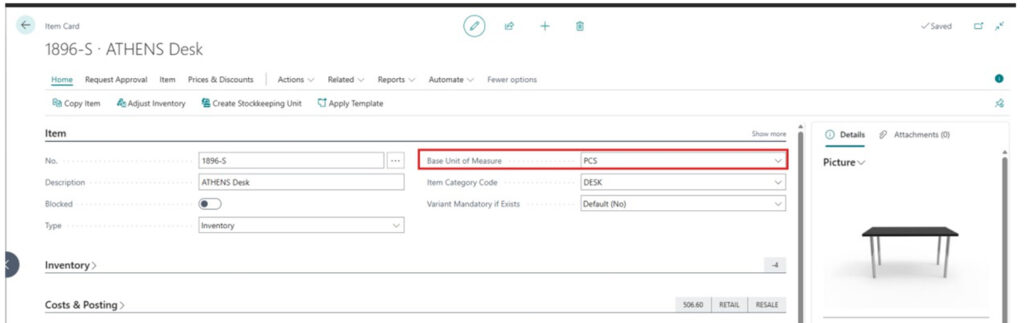
Let’s examine how this works using item 1896-S “ATHENS Desk” from the CRONUS database:
Configuring the Item Card for multiple units of measure
For this example, open the Item Card for the ATHENS Desk by navigating to Items > Item List and selecting Item 1896-S.
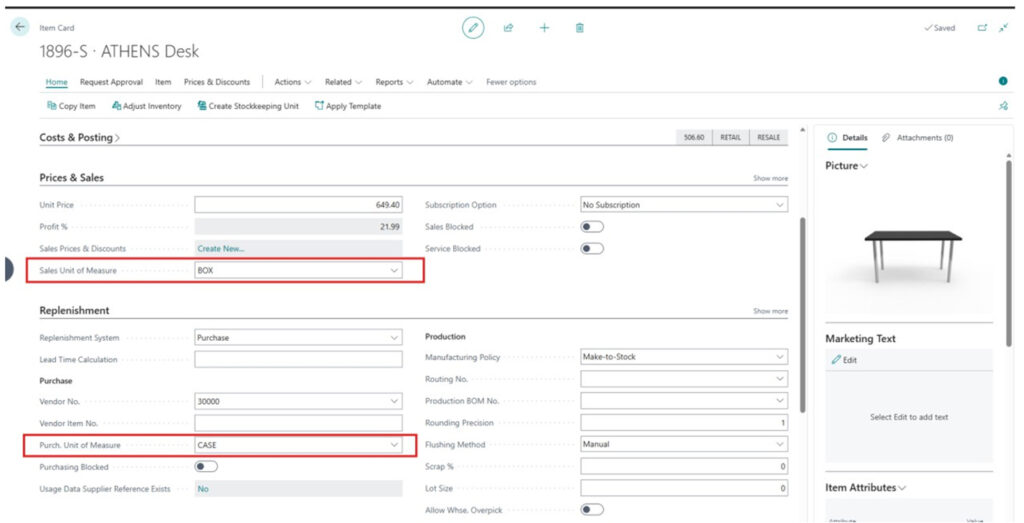
The key fields to configure are:
- Base Unit of Measure: PCS (Pieces)
- Sales Unit of Measure: BOX
- Purch. Unit of Measure: CASE
Defining unit conversions for the item
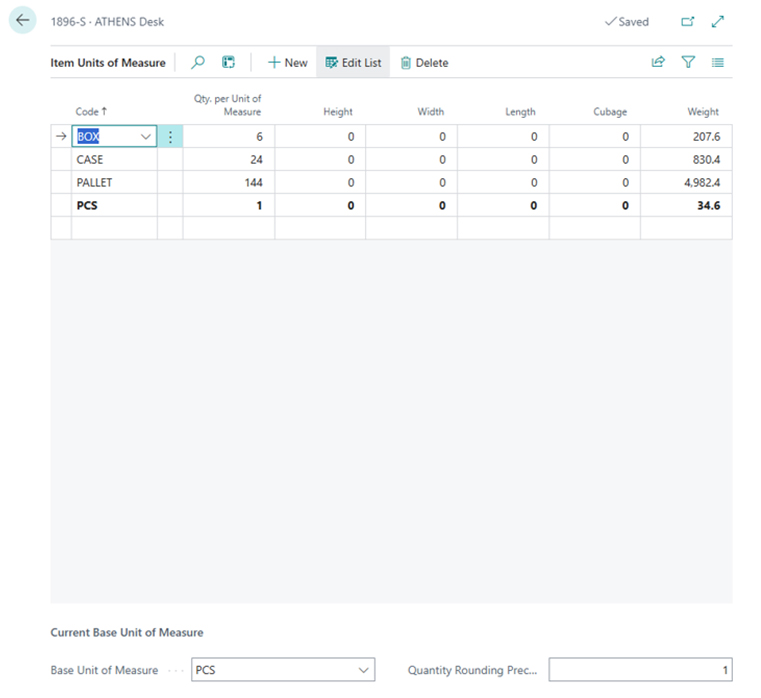
To define the relationships between the various units of measure used to store and package the item, select Navigate > Item > Units of Measure from the Item Card.
| Code | Description | Qty. per Unit of Measure |
| PCS | Pieces | 1 |
| BOX | Box | 6 |
| CASE | Case | 24 |
| PALLET | Pallet | 144 |
This setup means:
- 1 BOX = 6 PCS
- 1 CASE = 24 PCS
- 1 PALLET = 144 PCS
How to manage the purchase and put-away process using multiple units of measure in Business Central
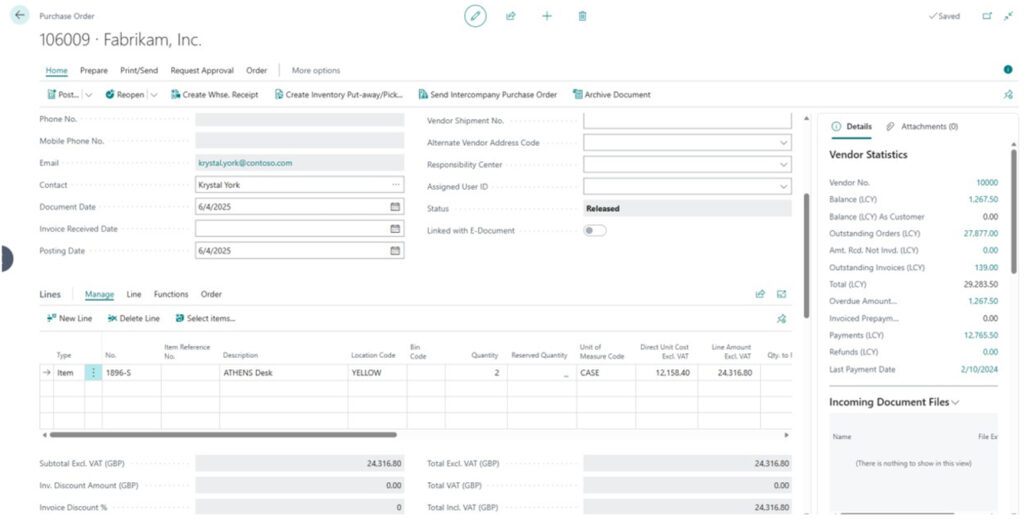
Creating purchase orders using alternative units of measure
To set the unit of measure for an item on a purchase order:
- Navigate to Purchasing > Purchase Orders > New
- Add item 1896-S ATHENS Desk
- Set Unit of Measure Code to CASE
- Enter Quantity: 5 (meaning 5 cases = 120 pieces)
Receiving inventory in the warehouse
After posting the purchase order, release the item to the warehouse:
- Navigate to Purchasing > Purchase Orders > Release
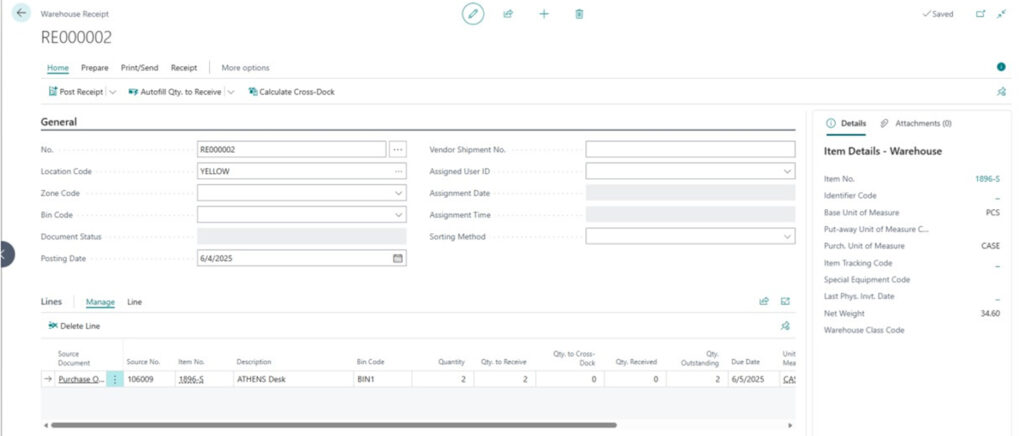
- Create a warehouse receipt from the purchase order
- The system shows
- Quantity: 5 CASE
- Quantity (Base): 120 PCS
Performing put-away with automatic unit conversion
From the warehouse receipt, create the put-away for the item:
- Warehouse > Warehouse Receipts > Create Put-away
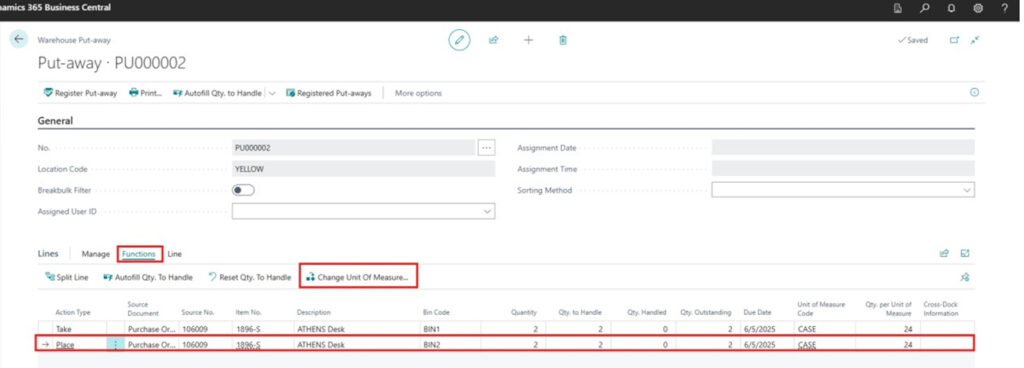
- The put-away document displays:
- Quantity to Handle: 5 CASE
- Quantity (Base): 120 PCS
- Unit of Measure: Can be changed to PCS for individual piece put-away
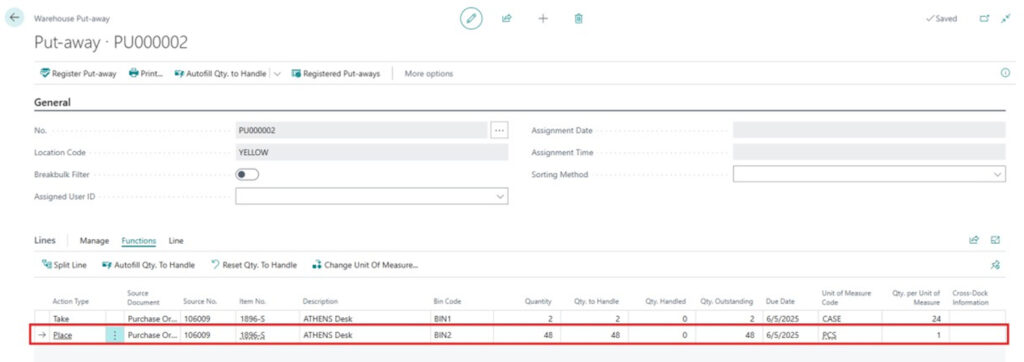
- Select the line with Action Type Place; click on the Functions > Change Unit of Measure action
- Change the Unit of Measure Code to PCS

Business benefits of flexible put-away units
Business Central’s ability to define multiple units of measure for an item as it moves from purchase order to the warehouse results in the following benefits:
- Flexibility to put away in different units than received
- Automatic quantity conversion
- Inventory tracking remains accurate
How to pick inventory in different units of measure in Business Central
Creating sales orders using customer-specific units
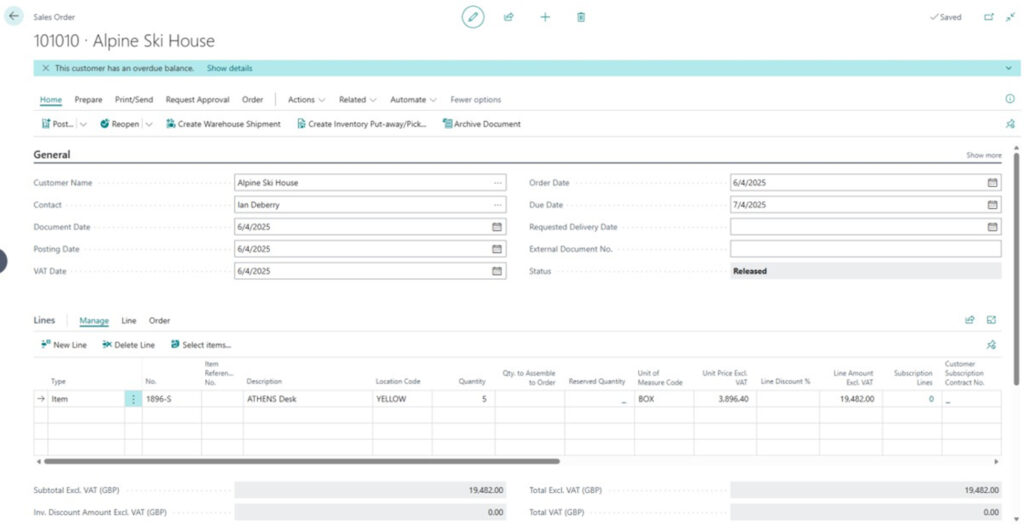
To create a new sales order with a different Unit of Measure Code:
- Navigate to Sales > Sales Orders > New
- Add item 1896-S
- Set Unit of Measure Code to “BOX”
- Set Quantity to 5 (meaning five boxes, or 30 PCS)
Creating the warehouse shipment
From the sales order:
- Navigate to Sales > Sales Orders > Release
- Create Warehouse Shipment
- The system shows:
- Quantity: 5 BOX
- Quantity (Base): 30 PCS
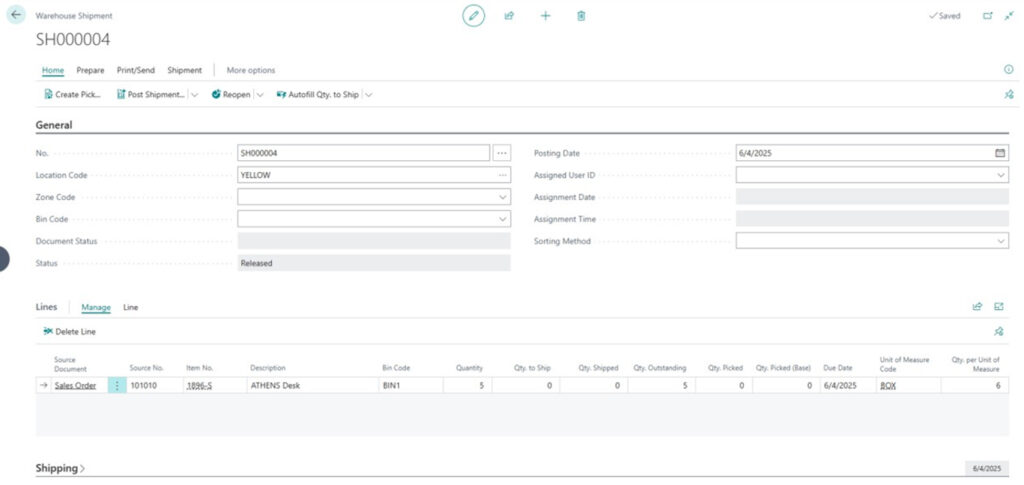
Create a pick using the Business Central warehouse unit conversion
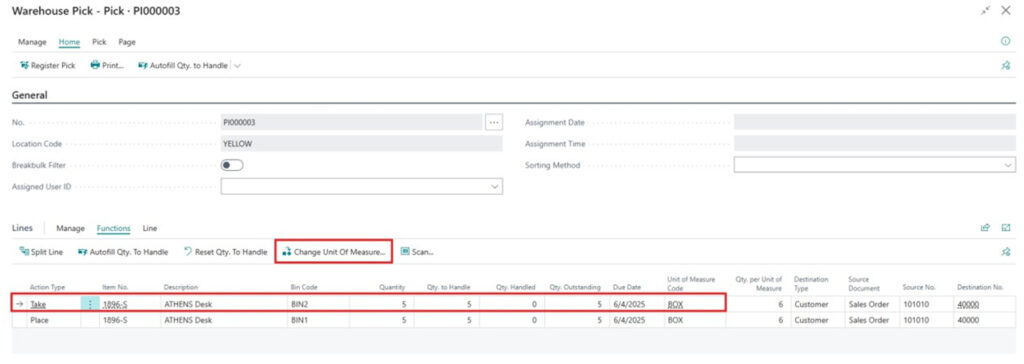
From the warehouse shipment, select Create Pick:
- Navigate to Warehouse > Warehouse Shipments > Create Pick
- The Pick document displays:
- Quantity: 5 BOX
- Quantity (Base): 30 PCS
- The pick can be executed using either BOX or PCS units
- Select the line with the Action Type of Place and click on the Functions > Change Unit of Measure action.
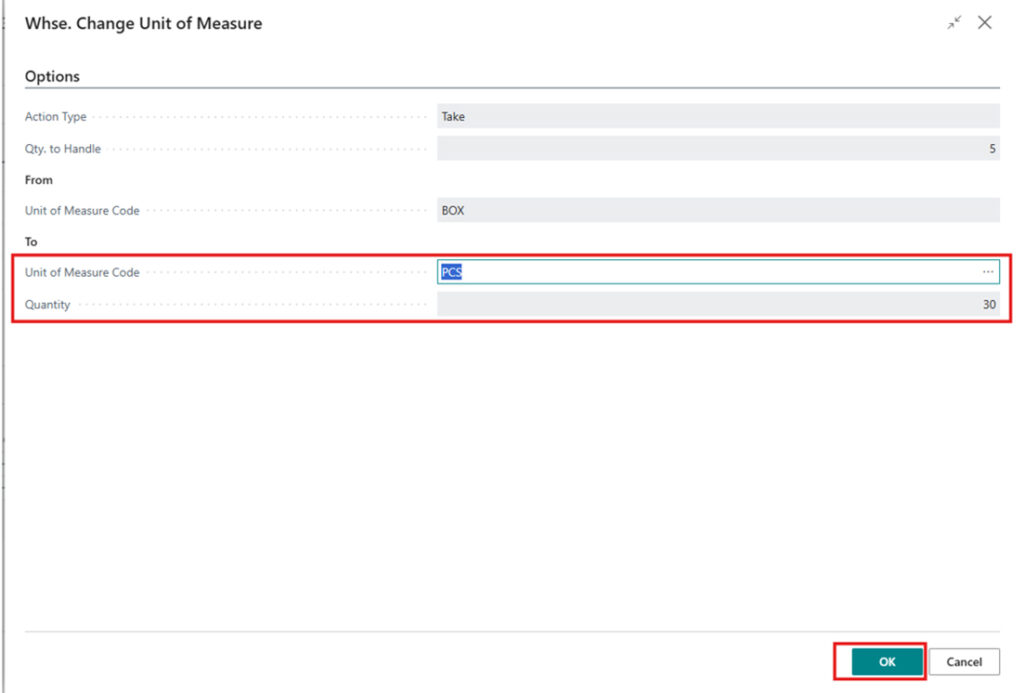
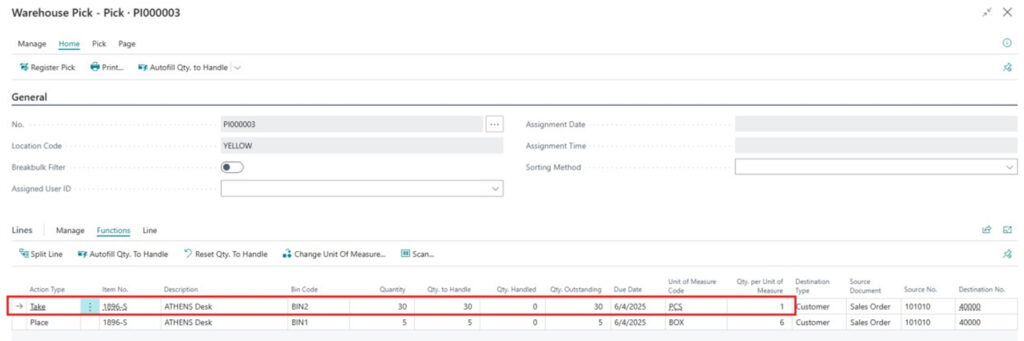
Business benefits of flexible picking units
Being able to change how Business Central manages picking items from inventory gives users the following benefits:
- Flexibility to pick inventory in different units other than the stored or received units
- Quantity conversion is automatic
- Inventory tracking remains accurate
Why multi-unit warehouse management matters in Business Central
Effectively managing multiple units of measure in Business Central is a critical capability for scaling warehouse operations without adding complexity.
When your warehouse team can receive, store, pick, and ship items in the units that make the most operational sense, you unlock real business benefits:
- Faster and more flexible receiving and put-away processes
- More efficient picking and packing workflows
- Fewer manual conversions and fewer errors
- Accurate inventory quantities across all transactions
- Better alignment between purchasing, warehouse, and sales operations
The CRONUS demonstration database provides an excellent sandbox for practicing these scenarios before rolling them out in production. Start with simple unit relationships and expand into more complex scenarios as your team becomes comfortable with the workflows.
Get more from your Business Central warehouse
Most companies use only a fraction of what Business Central’s warehouse and inventory management features can do. Units of measure, directed pick and put-away, bin strategies, and warehouse workflows can dramatically improve efficiency — but only if they’re set up and used correctly.
ArcherPoint by Cherry Bekaert helps manufacturers and distributors:
- Optimize warehouse and inventory processes in Business Central
- Design scalable picking, put-away, and replenishment workflows
- Clean up item, unit of measure, and bin configurations
- Improve inventory accuracy and warehouse productivity
If your team is struggling with manual workarounds, inconsistent inventory, or inefficient warehouse operations, contact ArcherPoint by Cherry Bekaert to maximize the value of Business Central’s features in managing your warehouse and inventory operations.
Trending Posts
- Login Error: Communication protocol mismatch between client and server
- How to Make Measures Total Correctly in Power BI Tables
- The Microsoft Technology Stack – What Is It & Why Should You Care?
- MRP vs. MPS: Choosing the Right Planning Approach for Your Manufacturing Business
- Designing a Connected Student Engagement Technology Stack
Stay Informed
Subscribe to Communications
"*required" indicates required fields