
May 20, 2019
Use the String Function in Microsoft Dynamics Business Central On Premises
This blog provides a step-by-step guide to using the String function in Microsoft Dynamics Business Central for customizations.
- Open Visual Studio.
- Create a Code unit for the string function.Figure 1 – Creating a code unit for the String Function in Microsoft Dynamics Business Central
- Create a page extension.
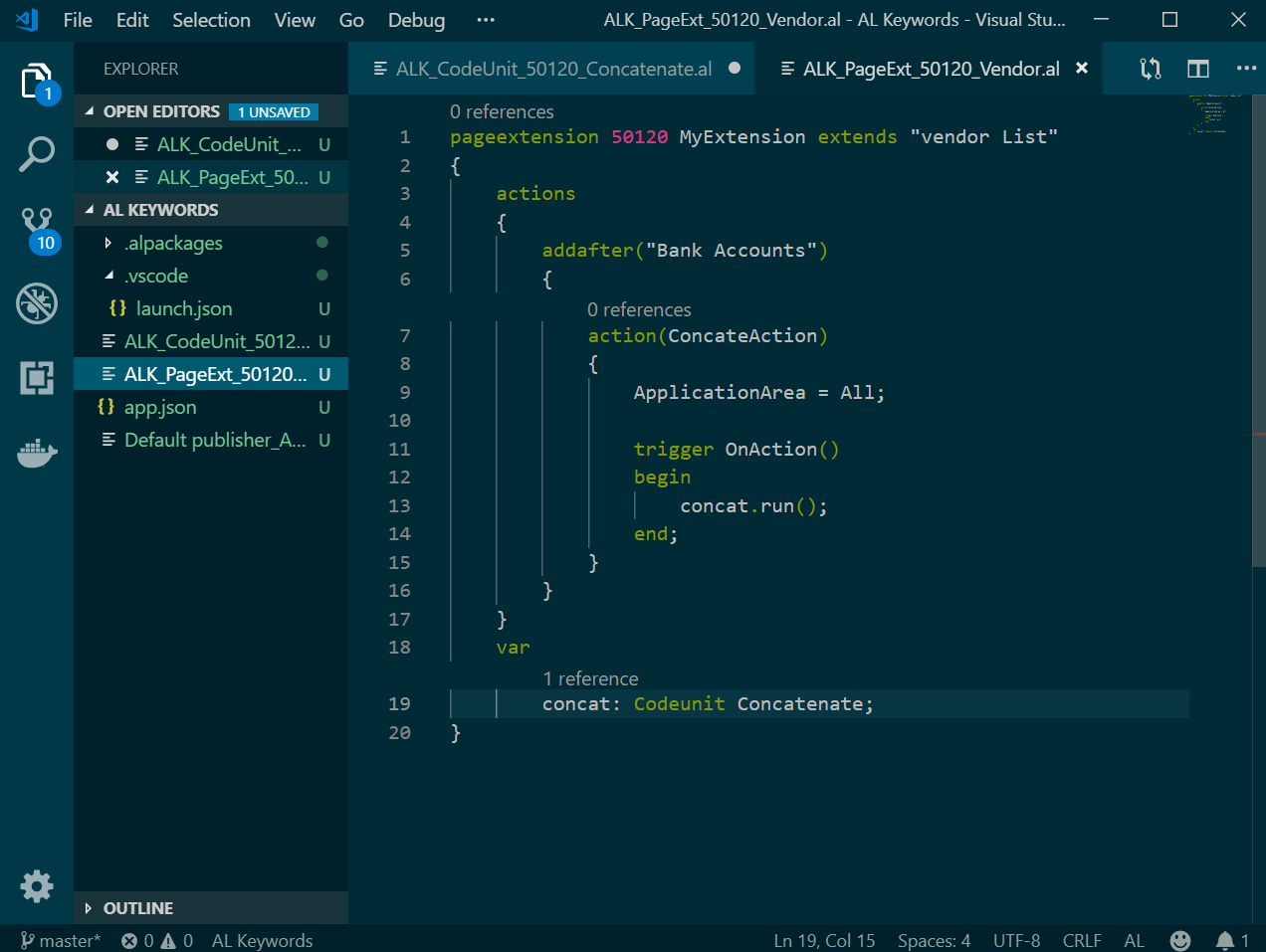
Figure 2 – Creating a page extension for the String function in Microsoft Dynamics Business Central - Click F5 or click on View, then Click on >AL: Publish. The Vendor page will open; go to Navigate -> vendor-> ConcateAction(Action name).
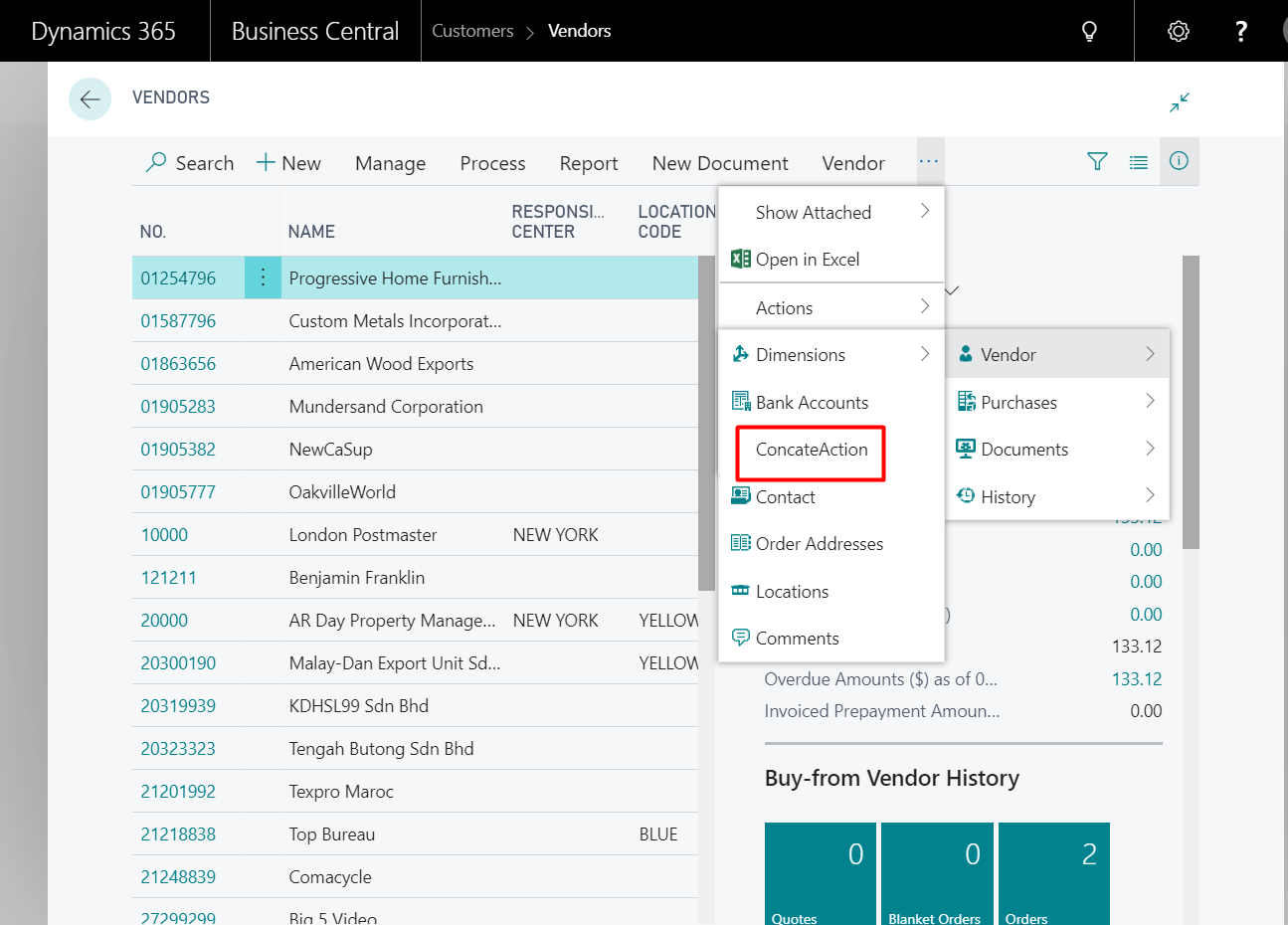
Figure 3 – Action is added after Bank Accounts and name of the action is ConcateAction in Microsoft Dynamics Business Central
Final output:
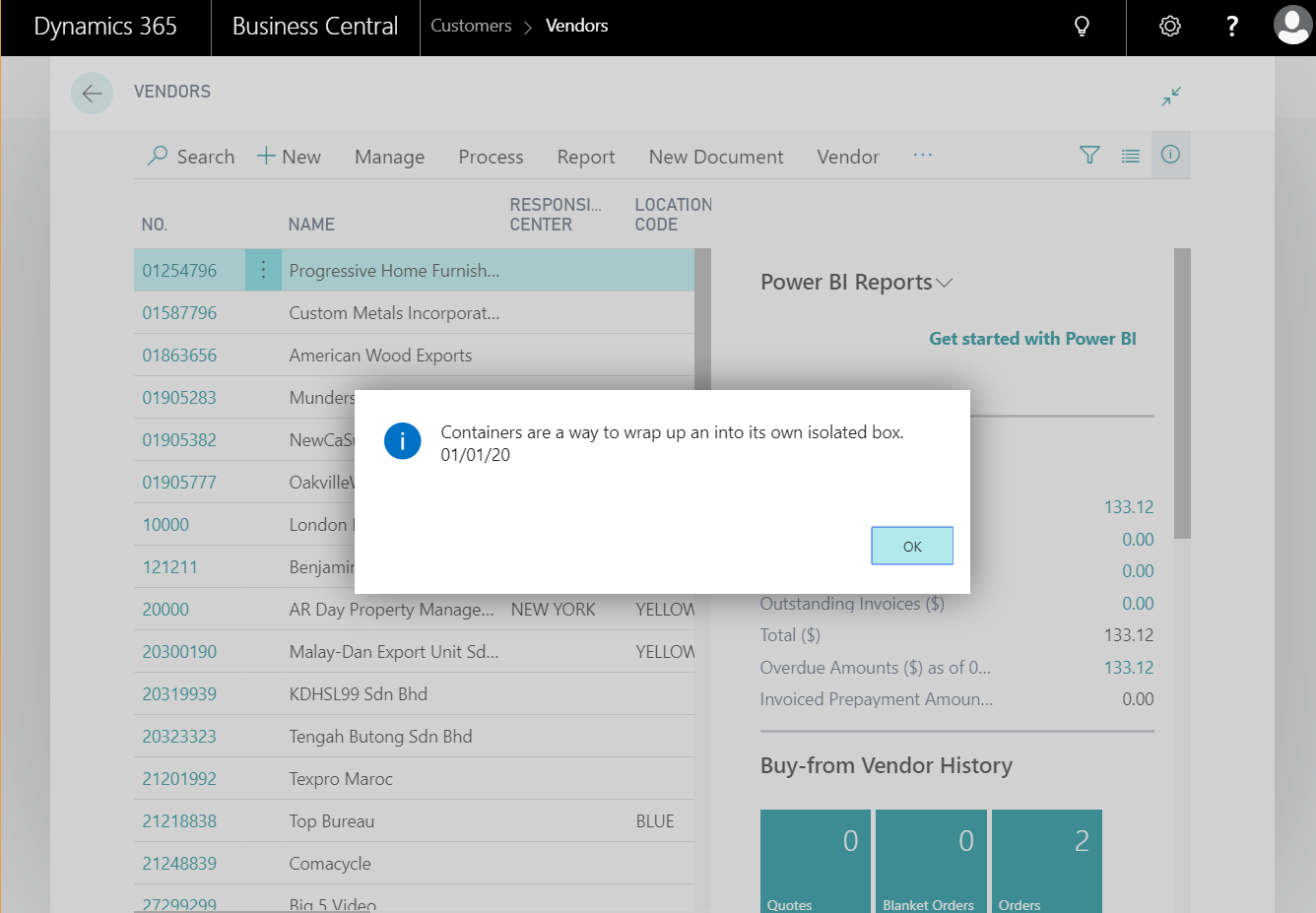
Figure 4 –Output of the MAXSTRLEN Keyword in Microsoft Dynamics Business Central
If you have any questions about Extensions or other Dynamics NAV or Business Central questions for any version, contact ArcherPoint.
Read more “How To” blogs from ArcherPoint for practical advice on using Microsoft Dynamics Business Central or NAV.
If you are interested in NAV/Business Central development, check out our collection of NAV/BC Development Blogs.
Trending Posts
- Login Error: Communication protocol mismatch between client and server
- How to Make Measures Total Correctly in Power BI Tables
- The Microsoft Technology Stack – What Is It & Why Should You Care?
- MRP vs. MPS: Choosing the Right Planning Approach for Your Manufacturing Business
- Designing a Connected Student Engagement Technology Stack
Stay Informed
Subscribe to Communications
"*required" indicates required fields