
Event Recorder to AL Code: A VS Code Workflow in Business Central
New to the Event Recorder? Start with our guide on How to Use the Event Recorder in Dynamics NAV/BC for the basics, then come back here for the VS Code workflow.
In Business Central you extend the standard application by subscribing to events, not by editing base code. The hard part is knowing which event fires, and when — and once you know, getting from that event to working AL code without breaking your flow in and out of the editor. The Event Recorder answers the first question in about a minute. Running it through VS Code answers the second.
Start from VS Code
In VS Code, press Ctrl+Shift+P and run the AL: Open Events Recorder command. This opens the Event Recorder page without leaving your editor, so the trip from finding an event to writing its subscriber stays in one place.
You’ll still need a second surface to perform the action you’re recording — open a browser tab on the same environment, and use a sandbox, not production.
Record the action
1. In the Event Recorder page, choose Record Events > Start, then confirm.
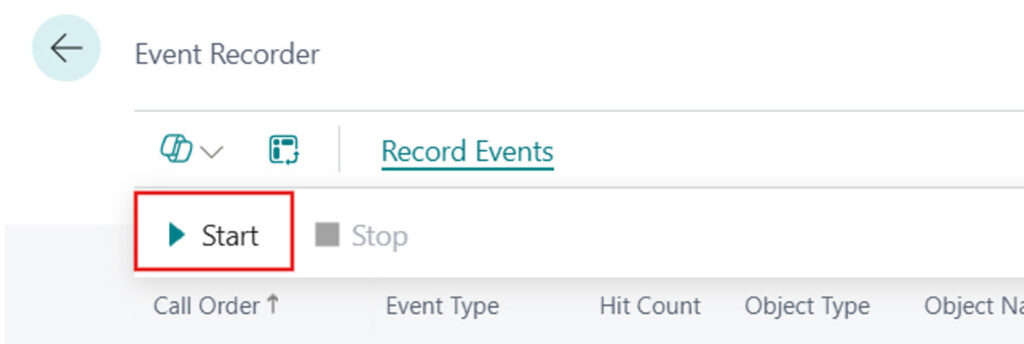 Choose Record Events > Start
2. In the browser tab, perform only the action you want to capture, such as posting one sales order.
3. Return to the recorder and choose Stop. The captured events appear in the order they were called.
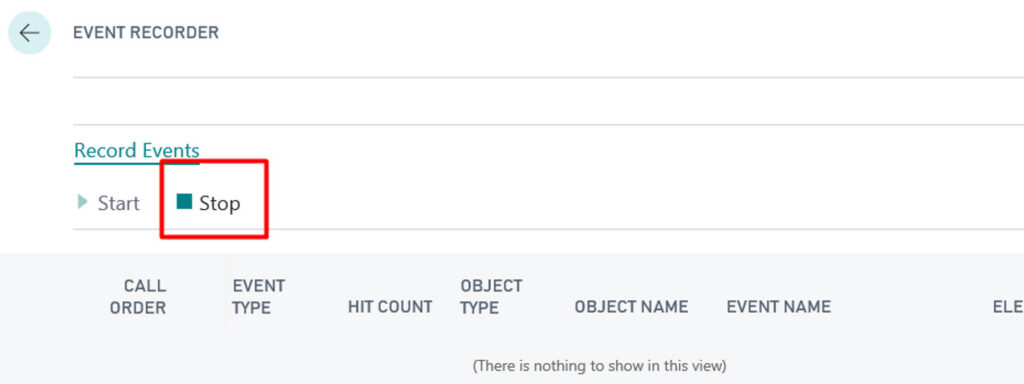
4. Locate the event you need from the captured list of triggers and custom events.
Reading the results
Each row tells you the event name, its type, and the object that published it. Order matters: an OnBefore() event is your chance to validate or block, while an OnAfter() event is where you write follow-up logic once the standard work has succeeded. Pick the narrowest event that still sees the data you need.
Back to VS Code: from Business Central Event Recorder to AL snippet
Choose Get AL Snippet on the row you want. Business Central returns a ready-made subscriber signature that you paste straight into a codeunit in VS Code — the same editor you started from.
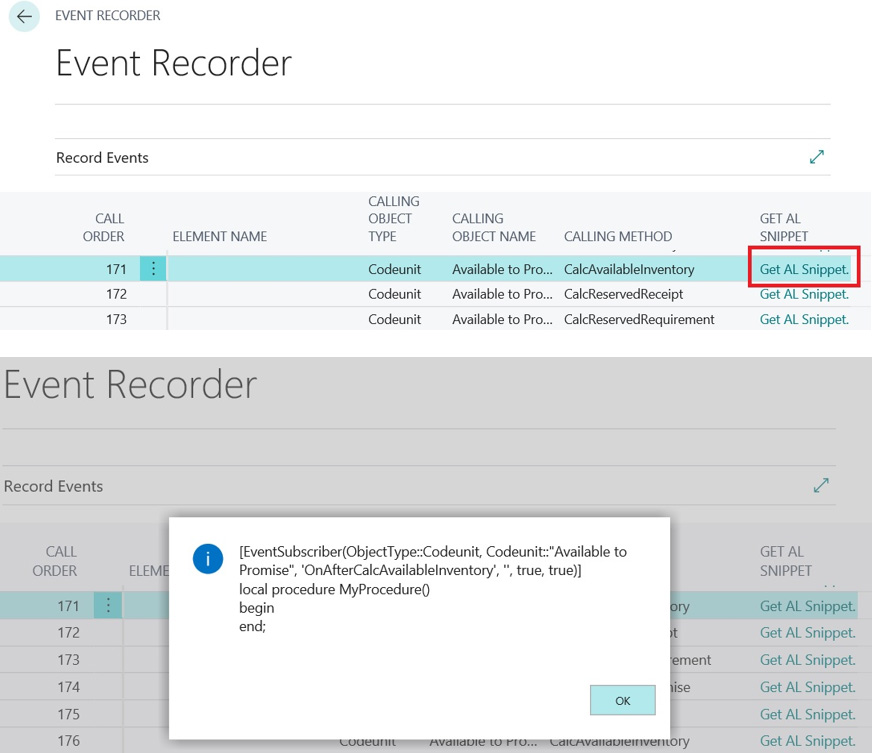
Three things to watch
- Nothing is saved. Recorded events vanish when you refresh or close the page. Copy what you need before you navigate away.
- Record one action at a time. A short list is a readable list. Batch several actions together and the useful event is buried.
- Not every extension point appears. The recorder shows what was raised in that run. If your scenario branches, record the branch you actually care about.
Used well, the Event Recorder turns event discovery from guesswork into a five-minute step. It keeps customizations attached to published events rather than to base code, which is what keeps them upgrade-safe.
Looking for the fundamentals first? See How to Use the Event Recorder in Dynamics NAV/BC for the basic recording workflow.
Trending Posts
- Login Error: Communication protocol mismatch between client and server
- How to Make Measures Total Correctly in Power BI Tables
- The Microsoft Technology Stack – What Is It & Why Should You Care?
- MRP vs. MPS: Choosing the Right Planning Approach for Your Manufacturing Business
- Designing a Connected Student Engagement Technology Stack
Stay Informed
Subscribe to Communications
"*required" indicates required fields