
Business Central SaaS Updates: What Changes When Microsoft Controls the Calendar?
One of the biggest benefits of Business Central SaaS is that Microsoft handles the infrastructure and delivers regular updates automatically. You no longer need to schedule major upgrades months or years in advance. All you have to do now is sit back and let the updates roll, right?
Well…maybe not. Do you have customizations in your environment? If the answer is no, sure, relax, sip your coffee, and enjoy those updates. Take a look at the release document every six months to review the new features, and you’re all set.
However, for companies running customizations, integrations, or third-party ISV solutions, every major Business Central release introduces potential risk. New functionality, deprecated objects, and application changes can affect custom code and business processes in unexpected ways. Allowing updates to proceed without preparation may lead to production issues, such as missing or malfunctioning custom functionality.
The good news is that with the right preparation, these updates can become a predictable part of your operational rhythm rather than a source of disruption.
To avoid panicked calls from your coworkers after a Business Central update, follow these essential steps:
Sign up for Notifications and monitor Microsoft update emails
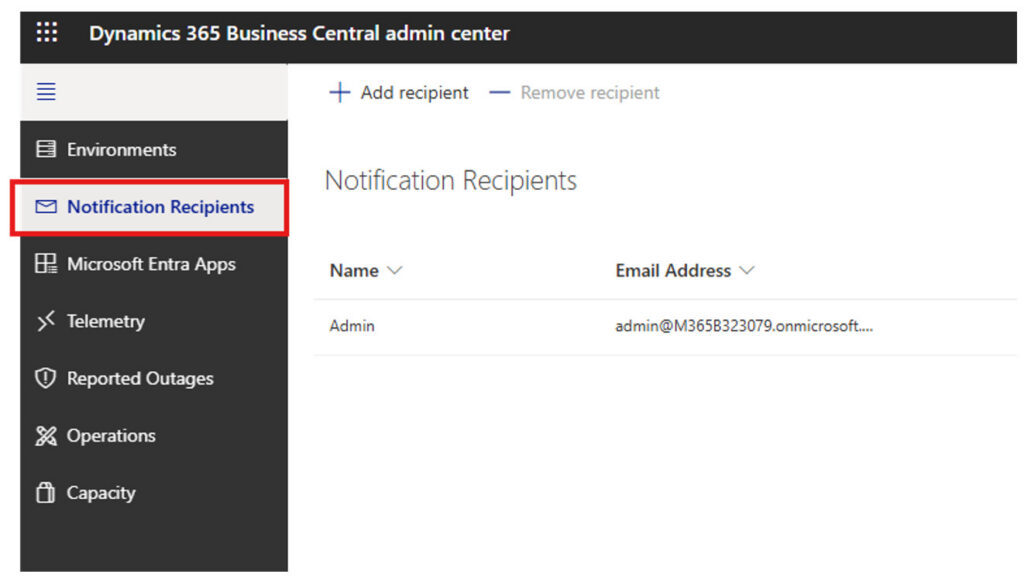
In the Admin Center, select Notification Recipients. Add one or more Recipients to receive the Notifications. Microsoft will send an email containing:
- A description of any detected custom code breakages
- The date that the update becomes available
Note that Microsoft’s email will not include a solution for the breakage, nor will it detect issues in code interacting with ISV applications.
Delay the update
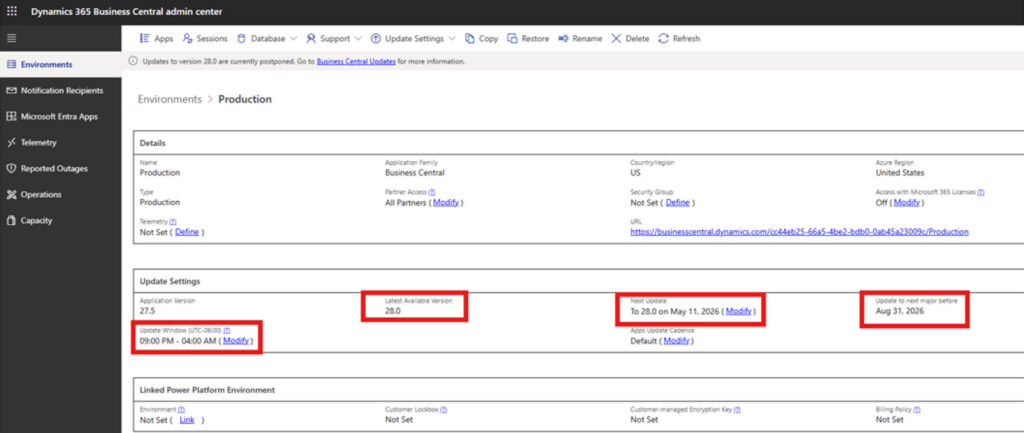
After receiving the email, extend the update date for the Business Central Production environment as far as possible to allow time for preparation. Microsoft will allow customers to delay the update for approximately five months. In the Admin Center, you can view your current version, the next expected version, and the transition dates to the new version. The dates can be modified as needed up to the final deadline set by Microsoft.

Address code breakages
Contact your Microsoft partner or your internal development team to resolve any issues. These breakages can include deprecated objects/table fields, ISV add-on failures, or external integration. Microsoft’s email won’t identify ISV or external integration issues, but a developer can spot warnings in the code. Reach out to your ISV partner to address code breakages in ISV applications.
Create a Sandbox environment
Set up a copy of the Production environment and update it to the latest major version for testing purposes.

Perform User Acceptance Testing (UAT)
Have key users test areas where code breakages occurred. It’s also wise to test major functional areas such as Shipping, Receiving, paying people, and getting paid.
Plan for go-live
Once testing is complete, schedule a Go-Live weekend with the internal team. In the Admin center, set the date for the Production update. ISV apps will automatically update when the BC version update occurs.
By following these steps, you can ensure your SaaS updates are as painless as possible. While testing every six months may seem daunting initially, developing a consistent cadence and plan will make the process more manageable and far easier than the lengthy updates of the past.
Find out how ArcherPoint can help
The shift to SaaS has changed how organizations think about ERP upgrades. Instead of large, disruptive projects every several years, Business Central customers now operate in a continuous update environment. That approach delivers easier access to innovation, security improvements, and new functionality, but it also requires a disciplined approach to testing and governance.
Organizations that establish a repeatable process for reviewing release notes, testing customizations, validating integrations, and preparing users for new releases can turn updates into a strategic advantage rather than a recurring headache. The goal to ensure that your ERP environment remains stable, secure, and aligned with the needs of the business.
If you need help managing Business Central updates, ArcherPoint by Cherry Bekaert can help take the stress out of updates that might adversely affect your custom code or ISV products. We offer Business Central SaaS Stay Current Assurance Plans that streamline the upgrade process and keep you current with Business Central.
Learn more about Microsoft’s major and minor update cycles for Business Central SaaS environments.
And be sure to download our Business Central SaaS Update Readiness Checklist, which will help guide you through the update process.
Trending Posts
- Login Error: Communication protocol mismatch between client and server
- How to Make Measures Total Correctly in Power BI Tables
- The Microsoft Technology Stack – What Is It & Why Should You Care?
- MRP vs. MPS: Choosing the Right Planning Approach for Your Manufacturing Business
- Designing a Connected Student Engagement Technology Stack
Stay Informed
Subscribe to Communications
"*required" indicates required fields