
How to Correct Dimension Values in Business Central G/L Entries

Have you ever posted entries to the G/L with the wrong Dimension value? Did you know you can run the Dimension Correction functionality to update/change your dimensions on posted G/L entries?
In Business Central, Dimension Correction allows users to update Dimension values on posted G/L entries without changing the original transaction. This ensures accurate reporting while maintaining a full audit trail.
Why correct the dimension values of G/L entries in Business Central?
In Business Central, dimensions drive how financial data is analyzed, not just how it is recorded. They represent things like:
- Department
- Cost center
- Location
- Project
- Customer group
- Product line
When a dimension is wrong on a G/L entry, the financial transaction itself is correct, but the classification of that transaction is not. Without accurate dimensions, you’re distorting how the business understands itself.
However, posted G/L entries are immutable, meaning they cannot be edited directly.
So instead of editing the G/L entry itself, Business Central uses a dimension correction process, which:
- Adjusts dimension values
- Preserves the original entry
- Maintains a full audit trail
How to perform Business Central G/L Dimension Correction
If you need to correct G/L entries:
Using Figure 1, when in (1) G/L entries, (2) filter on the document that requires dimension changes. Select All (3). Then select Correct Dimensions (4).

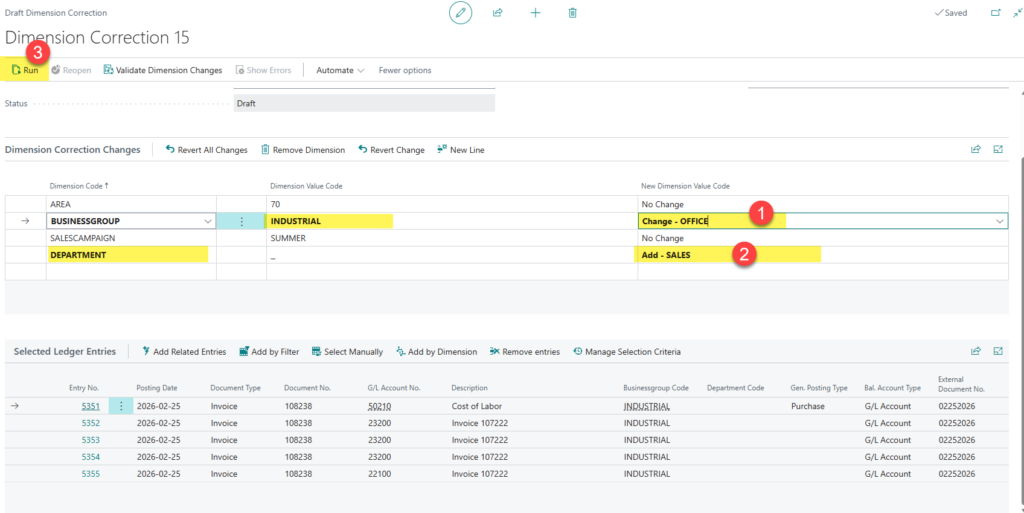
You can update, change, or add dimension values to the posted G/L entries. After you have updated or changed your dimension values (1-2 in Figure 2), click the Run button (3).
If you are using Analysis Views for your financial reporting, make sure you have the Update Analysis Views button set to True.

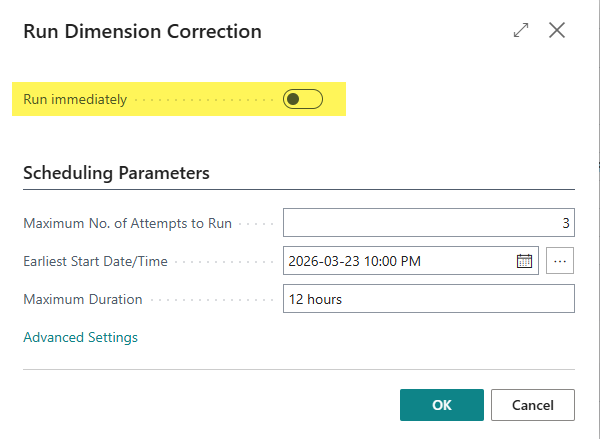
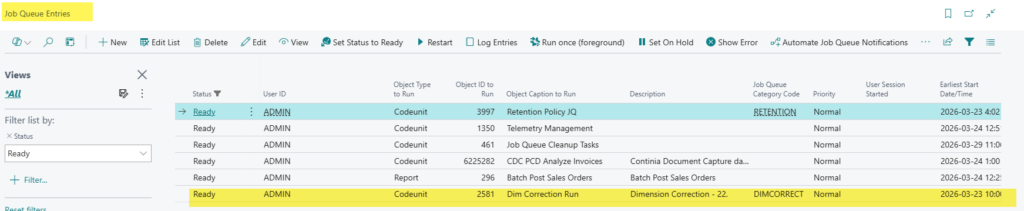
If you choose Run Immediately, the dimension values will be updated immediately. Otherwise, you can choose to have the job queue run and update the entries later. If you are correcting many entries, it is recommended that you run the job queue later at a time that will not affect system performance.
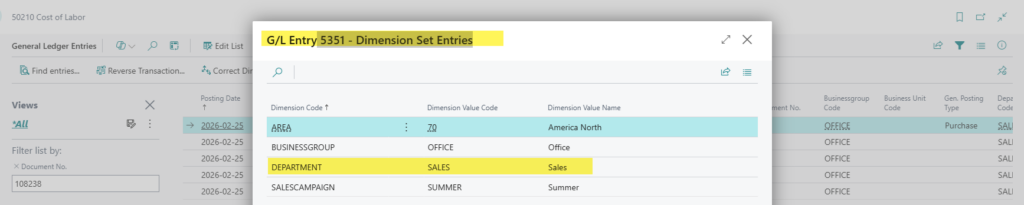
If you are correcting the dimension values for any global or shortcut dimension codes (for example, if the Dimension Code is Department, the Dimension Value might be Accounting, Sales, Marketing, Production, etc.).
Dimension Correction workflow
1. Draft the correction. Within the Draft Dimension Correction page, you can toggle on Update Analysis Views if you use that functionality and update the Description field (optional). In the New Dimension Value Code cell, make your necessary changes or updates.
2. Validate before running. Before you run a correction, it is a good idea to validate it first. Validation checks for restrictions on value posting for G/L accounts, restrictions for dimensions, and whether dimension values are blocked. During validation, the status is set to Validation in Process. After validation, the result appears in the Validation Status field. If errors were found, use the View Errors action to investigate them, then use Reopen to run the correction or a new validation.
3. Schedule for large datasets. You can run a correction immediately or schedule it for later. If running corrections on a large data set, it is recommended to schedule it outside business hours.
4. Undo if needed. If you don’t like the result after correcting a dimension, you can use the Undo action to reset it to the previous value. You can also validate the Undo action before executing it.
Limitations to the Dimension Corrections feature in Business Central
There are limitations, however:
- G/L entries only: Dimension corrections apply only to G/L entries. They do not automatically adjust related subledgers, such as inventory or sales.
- Related documents are NOT updated: Correcting dimensions in the General Ledger does not also update the dimensions on related documents and entries. For example, if G/L entries are related to a Posted Sales Invoice and a correction is made, the Posted Sales Invoice dimensions are not updated. To update posted documents and subledger entries, you will need to post a credit memo to the document.
- Batch size: While Business Central supports dimension corrections, large-scale updates should be handled carefully. Processing large volumes of entries in a single batch can impact system performance, so it is best to break corrections into smaller batches.
Audit trail
To view the history of corrections, go to Related > Entry > History of Dimension Corrections. This shows an audit trail of all changes made. Just click the View button to see the changes.
Restrict which users can perform corrections:
Correcting dimensions can significantly impact internal reporting, data integrity, and auditability. Business Central lets you restrict which users can perform corrections. Specific permission sets come with Dimension Corrections.

Find out more
Be sure to check out more of our How-To blogs or contact ArcherPoint by Cherry Bekaert to learn more about Business Central.
Trending Posts
- Login Error: Communication protocol mismatch between client and server
- How to Make Measures Total Correctly in Power BI Tables
- The Microsoft Technology Stack – What Is It & Why Should You Care?
- MRP vs. MPS: Choosing the Right Planning Approach for Your Manufacturing Business
- Designing a Connected Student Engagement Technology Stack
Stay Informed
Subscribe to Communications
"*required" indicates required fields