
How to Find Page, Report, or Object Numbers in NAV 2013 and 2015 RTC

In some instances, you may get an error message when you navigate to the report, page, or other objects. In this blog, I have put together step-by-step instructions on how to find your page, report, or object numbers in the Microsoft Dynamics NAV 2013 and NAV 2015 RoleTailored Clients (RTC) when receiving this error.
Once you are on the Report, Page, or other object in which you are getting an error, follow these steps:
- In the upper left hand corner, select the blue down arrow.
- Select “Microsoft Dynamics NAV Help.”
- Select “About this Page (or report etc.).”
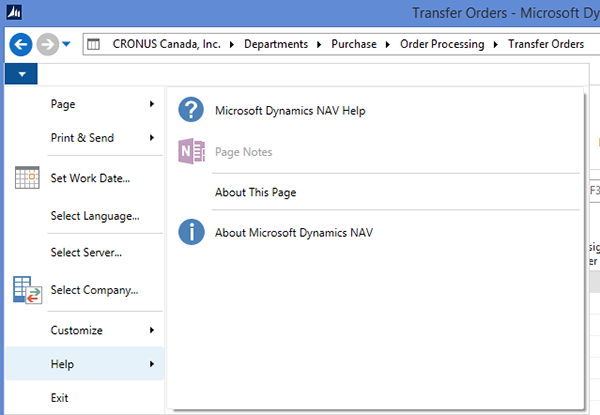
Figure 1. Dynamics NAV Help, About this Page screen.
- Take a screenshot and send the following to the ArcherPoint Support Team:
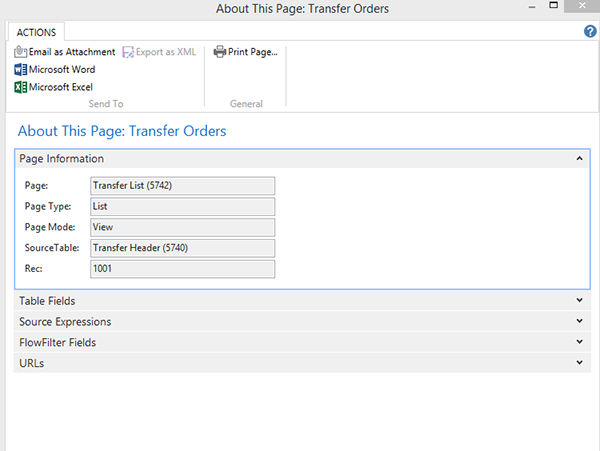
Figure 2. Screenshot of an About this Page.
I hope you found this tip helpful; however, if you have any further questions, contact ArcherPoint.
Read other relevant How-To blogs for more practical advice on Microsoft Dynamics NAV. Would you like to be notified when a new ArcherPoint blog is published? Subscribe today!
Trending Posts
- Login Error: Communication protocol mismatch between client and server
- How to Make Measures Total Correctly in Power BI Tables
- The Microsoft Technology Stack – What Is It & Why Should You Care?
- MRP vs. MPS: Choosing the Right Planning Approach for Your Manufacturing Business
- Designing a Connected Student Engagement Technology Stack
Stay Informed
Subscribe to Communications
"*required" indicates required fields